

Written By: Jordan Giannetti
In Part 1 of this series, we looked at how Black Diamond Advisory’s cash flow solution extends CPMx to make the hardest statement in the close something you can actually prove. Now let us shift gears so that we may begin to answer the questions that frequently get asked around every close: “I see that my receivables changed, but where did it come from?”, “Have our late entries been posted yet?”, and “Are all entities final for this month’s close?” Enter the Journal Viewer and Workflow Tracking.
Why Journal Review Slows the Close
OneStream is a powerful platform which allows each reporting team to have a dedicated space for performing their own close process. As a result, a comprehensive journal review is one of those areas that benefit from a purpose-built view. Tracking down the specific journal behind a number, or pulling together what an auditor wants to see, can take more steps than you would like when you are working through the native screens. So, when the controller asks about a topside entry, having all topside journals in a single reviewable table beats jumping around multiple workflows while you are in the middle of hitting your close deadlines.
The Journal Viewer
The Journal Viewer gives you every posted journal on a single screen, each one click away from its full detail. Because it queries the underlying tables directly, completely independent of how your dimensions are configured, this view is portable into just about any application, including a CPMx build, with very little fuss.
Two ways to look: Review entries by journal header or flip to a view that lists every journal line for a different way to cut the data.
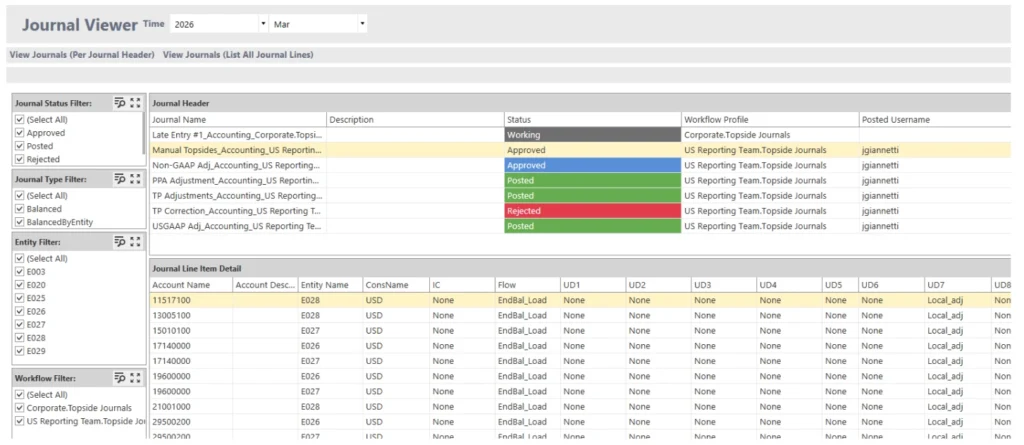
Every posted journal on a single screen, ready to filter and open.
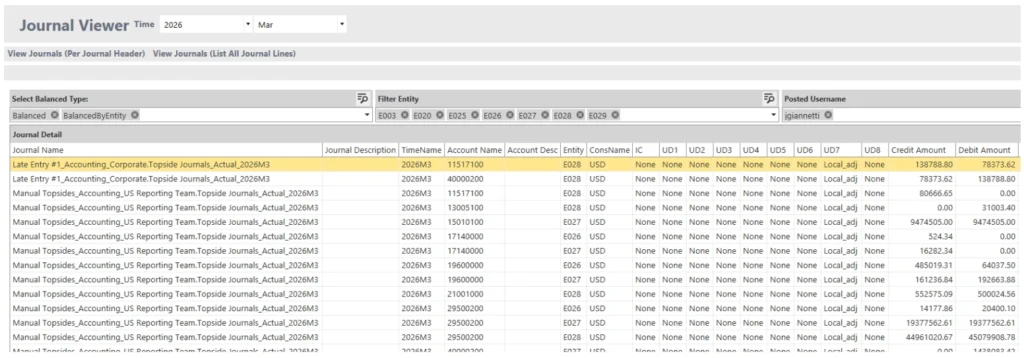
The line view lists every journal line for a different cut of the data.
- Filter to exactly what you need: Narrow by status (Posted, Rejected, Working), journal type, entity, account, posted date, and the user who created, approved, or posted the entry.
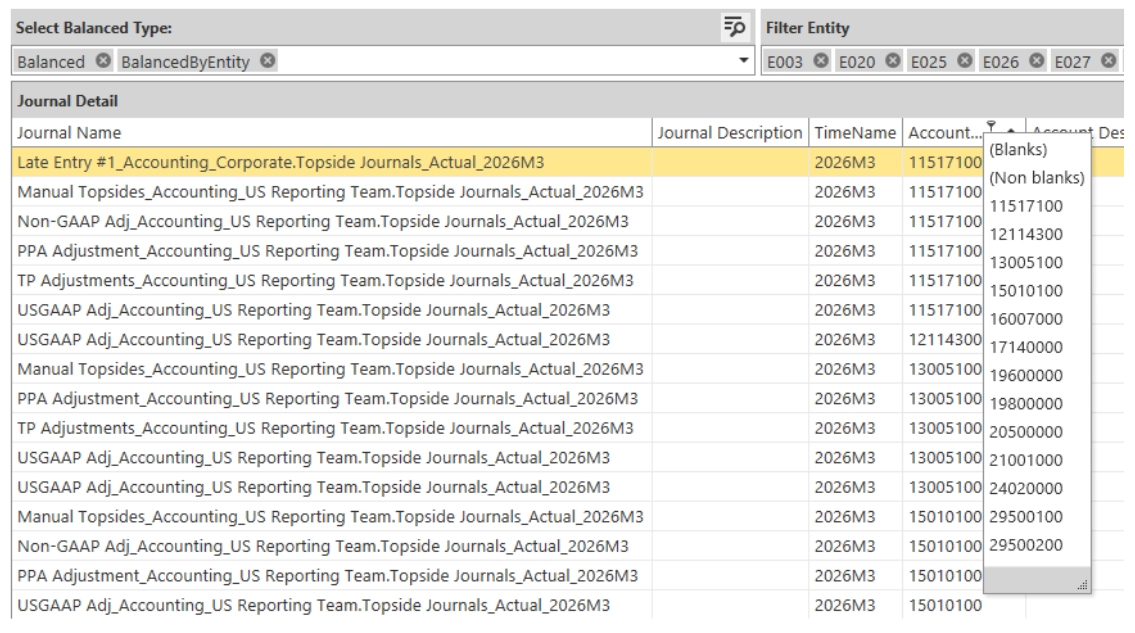
Each column can be filtered to see exactly what the user is searching for.
- Header plus line detail: Select any entry and the detail panel populates with the full posting, summary up top, line-item detail below.
- One click to the workflow: A “Go to Journal Workflow” button takes you straight to the journal in its workflow, so an entry that would otherwise be hard to find is now easily discoverable.
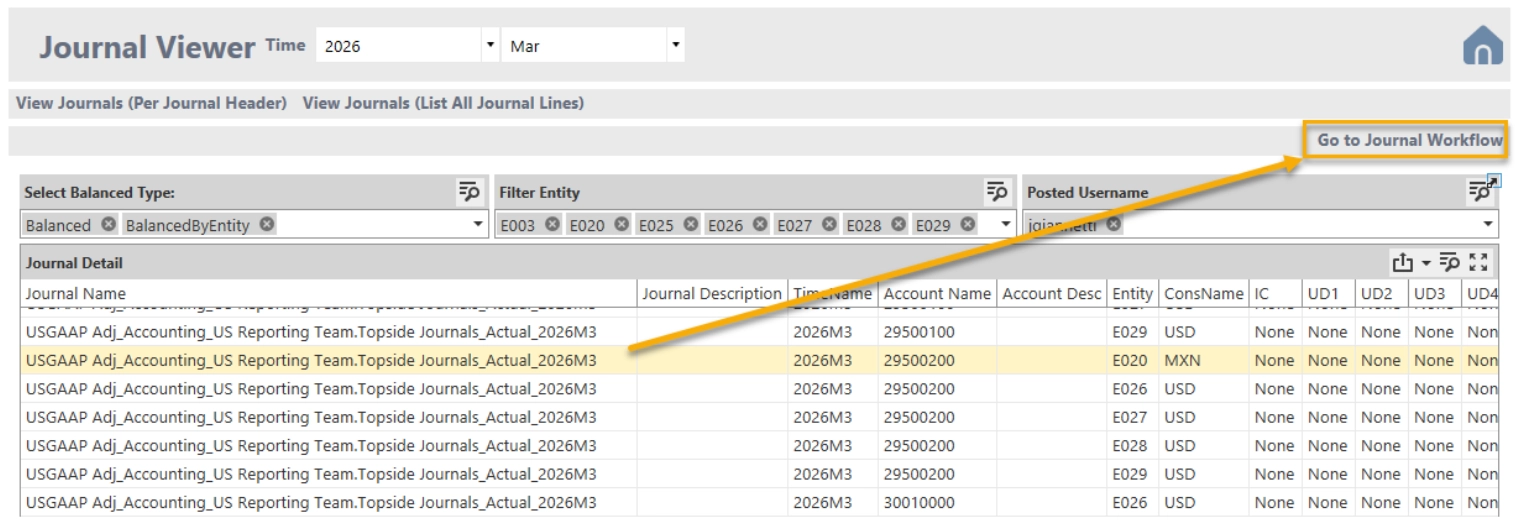
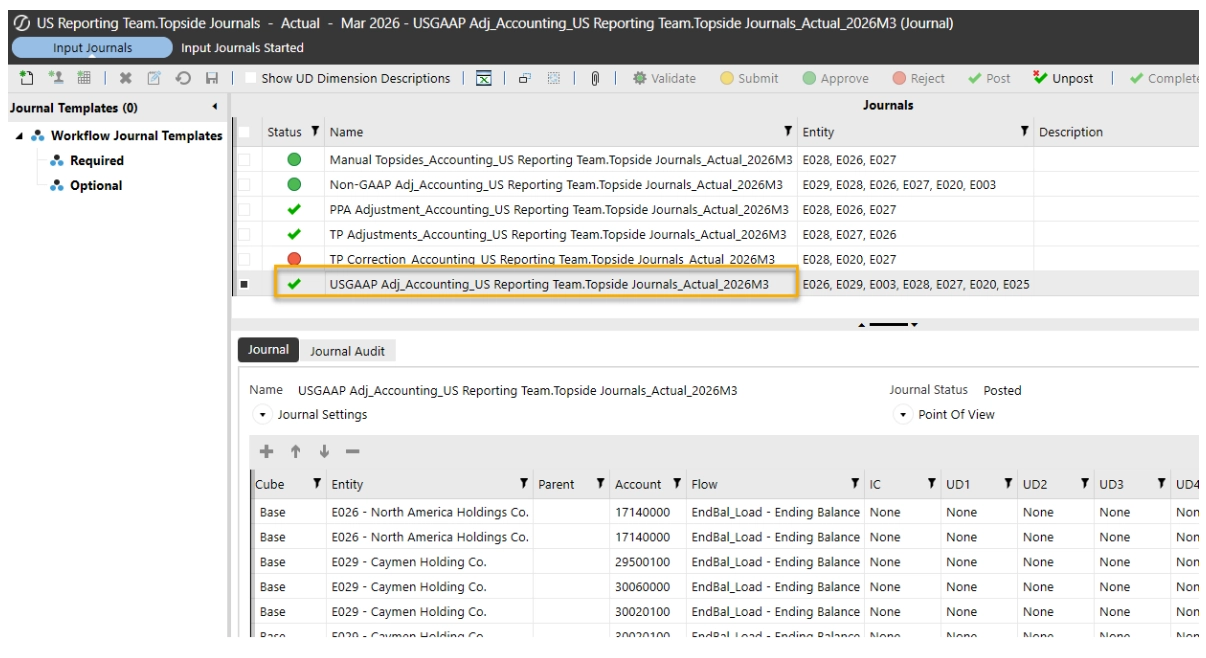
Jump to the workflow and review the entry directly where the journal has been posted.
- Customizable fields: Pull in any other field available to your application, so the view shows exactly the detail your team wants. Cost centers, Data types, Business units, anything your teams relevant for your application can be viewable as an added field to the journal viewer
It is the tool that quickly addresses requests when auditors start reviewing top-side entries and the one reporting teams lean on when tracking JE activity throughout the close process.
Workflow Tracking
If the Journal Viewer answers, “where did this come from?”, Workflow Tracking answers, “are we there yet?” It monitors the entire close progress in real time, so you are not chasing status updates in panicked emails or instant messages on a Thursday night wondering if you will be able to meet the Friday close deadlines.
- By workflow profile and entity: See total profiles, completed, in progress, and not started at a glance, with status broken out by workflow type (Forms, Import, Journals, Review) plus entity-level completion charts.
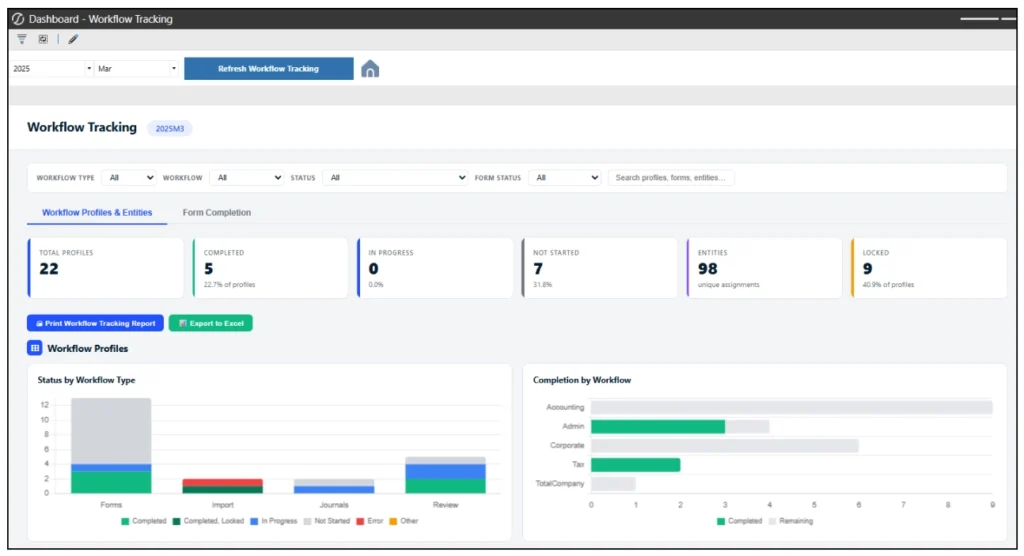
Close progress by workflow profile type and entity
- By form: A detail view of every form and its status, with summary tiles for total, incomplete (open vs. reverted), and completed, a status donut, and an Incomplete Forms by Workflow chart you can click to drill into a specific workflow.
- Entity-to-workflow mapping: A quick view of which entities are attached to which workflows, so there is no digging behind the scenes to figure out who owns what.
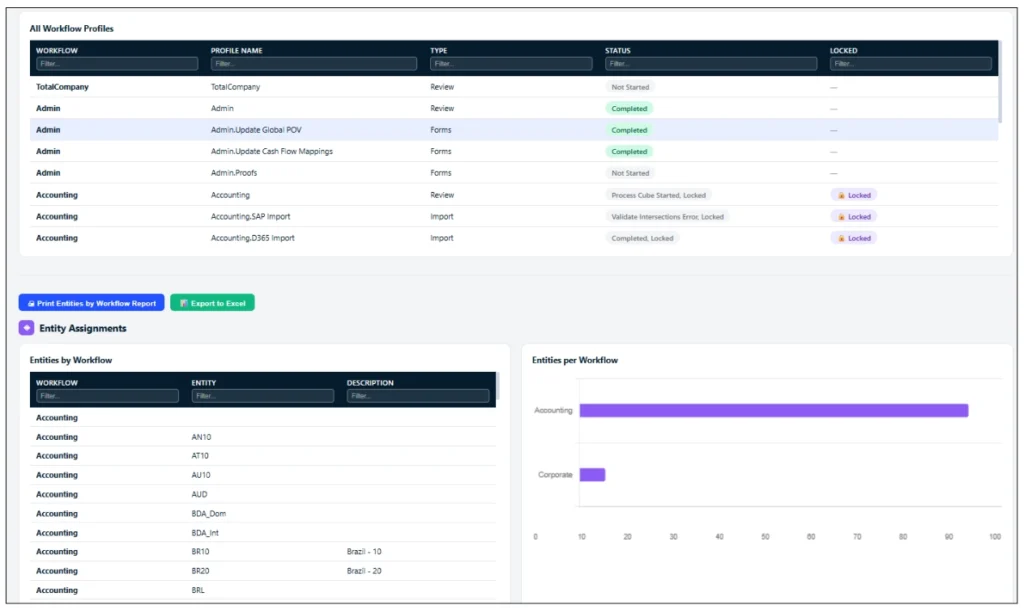
Review every workflow profile’s status in detail and use the entity-to-workflow mapping to see which entities are attached to which workflows.
- Export and print: Push any view to generate a clear and concise visual report of the current close process.
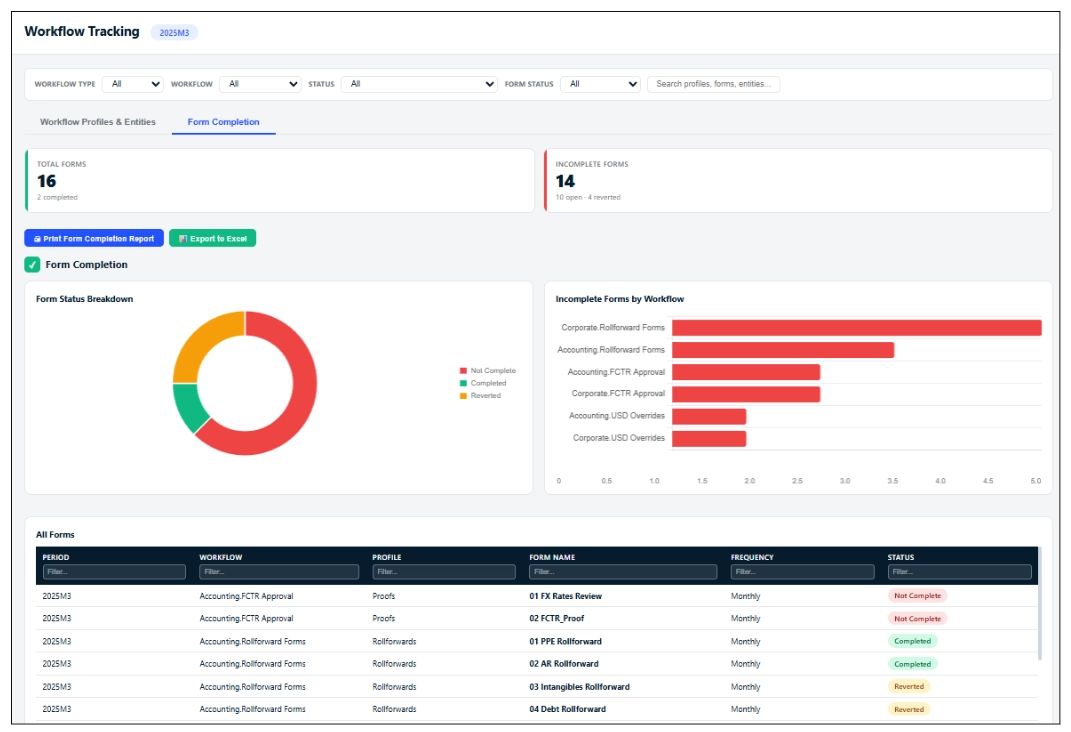
The by-form view breaks down every form’s status, with summary tiles, a status donut, and incomplete forms by workflow.
To be able to track each step of the close process not only provides reporting teams with the ability to proactively identify potential delays in the close deadlines, but it can also serve as the basis for identifying areas of process improvements as teams continuously work to improve their close cycles.
Built for Every Close
The Journal Viewer and Workflow Tracking are part of how we run a close. Workflow Tracking is open throughout, so admins and controllers can see in real time where things stand and which entities or forms are holding things up. The Journal Viewer is our first stop whenever a number needs explaining or an auditor comes knocking. And because both are drop-in components, we can add them to a client’s existing CPMx application without reworking their dimensions, one of the fastest wins we deliver.
Close With Confidence
OneStream gives you the workflow engine. The Journal Viewer and Workflow Tracking give you visibility into that engine, every entry traceable in a click, every entity’s close status on one screen. No one wants to be the admin finding out about a stuck workflow from a frustrated user. When the close is transparent, that’s a win for everyone!
Interested in seeing how this works in practice? Reach out to Black Diamond Advisory to schedule a demo and talk through how the Journal Viewer and Workflow Tracking could fit into your application.
Next up in the series: The Reporting Experience Your Users Want. See how Guided Reporting gives users flexible, self-service reports with reusable row and column sets, dynamic filters, and on-the-fly analysis using the Drill Utility.