

Introducing Navigation Center
If you’ve worked with reporting in OneStream, chances are you’ve interacted with several Marketplace reporting solutions along the way. While each serves an important purpose, they have historically existed as separate solutions within the platform, which can mean a little extra hunting when you’re trying to find a report.
The Navigation Center, introduced in OneStream version 9.1, brings these reporting capabilities together into a single, centralized experience. Not only does this Marketplace solution consolidate, but it also introduces enhancements that improve how reports are organized, accessed, and analyzed.
Navigation Center brings together reporting functionality that was previously delivered through:
- Application Reports
- Audit Reports
- System Reports
By consolidating these tools into one interface, administrators no longer need to install and maintain multiple reporting Marketplace solutions, simplifying both deployment and ongoing management. Fewer solutions to manage is always a win!
Why Navigation Center Matters
Navigation Center improves the reporting experience for both administrators and end users.
For administrators, the solution reduces the number of Marketplace components that need to be installed and maintained while adding additional management capabilities. Administrators can now:
- Set report due dates to help track required report reviews
- Create and assign tags to better organize reports
- Manage report security directly within the solution
For end users, Navigation Center makes it easier to locate and return to frequently used reports. Features such as recently viewed reports, bookmarks, tags, and due-soon reminders help users quickly find what they need without navigating through multiple locations.
Overall, these enhancements improve report discoverability and help streamline the reporting workflow within OneStream.
Getting Started with Navigation Center
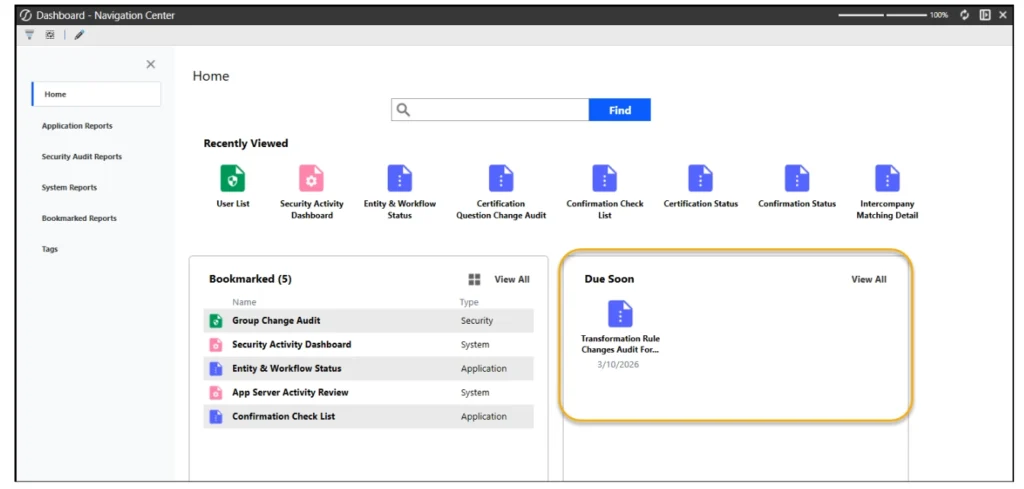
When users open the Navigation Center, the landing page highlights key report activity, including:
- Recently viewed reports
- Bookmarked reports
- Reports that are due soon
This layout allows users to quickly return to commonly used reports without needing to search through the full report catalog.
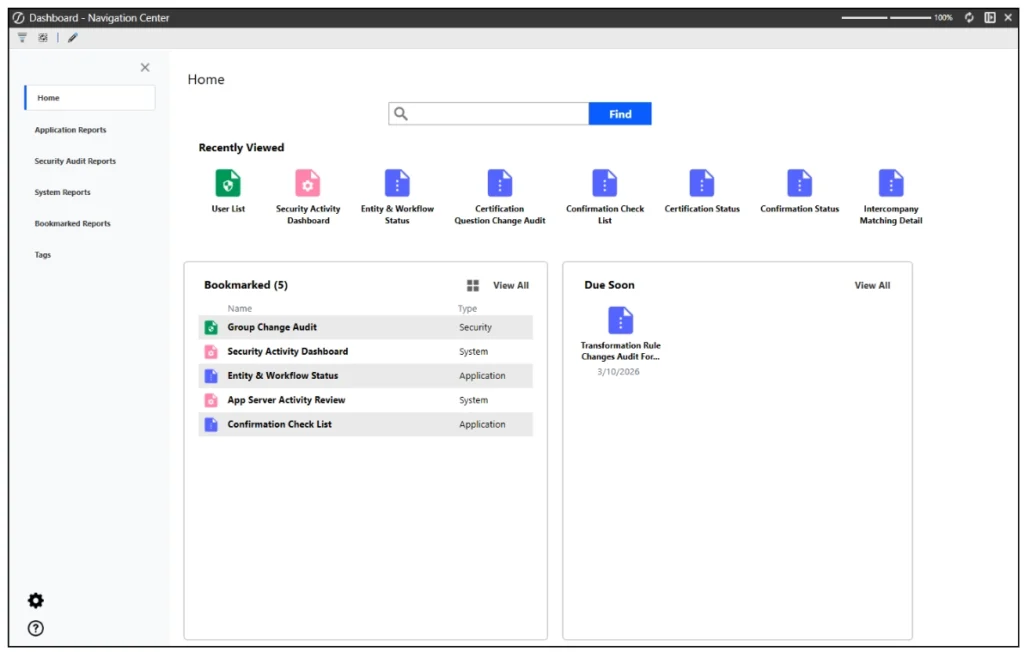
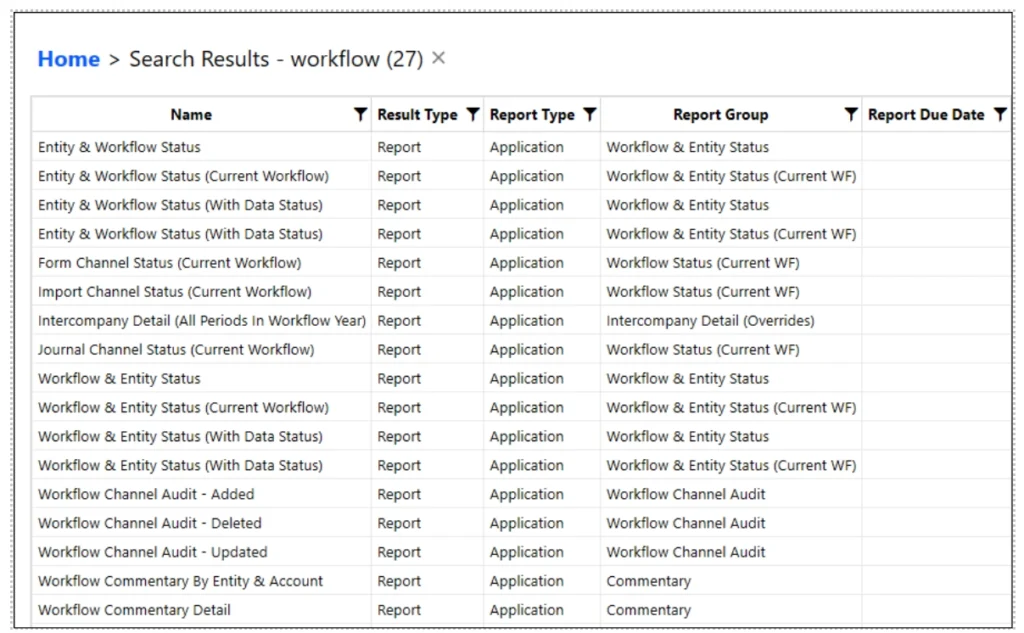
There is also a search bar that allows users to search by keywords in names and report groups or by Tags. A grid with all corresponding reports displays and can be opened from the grid simply by double clicking.
Organizing Reports with Tags
Navigation Center introduces the ability for administrators to assign tags to reports. Tags provide an additional way to organize and group related reports.
You can see the tags I created below. To add additional Tags simply click new and type in the name and save.
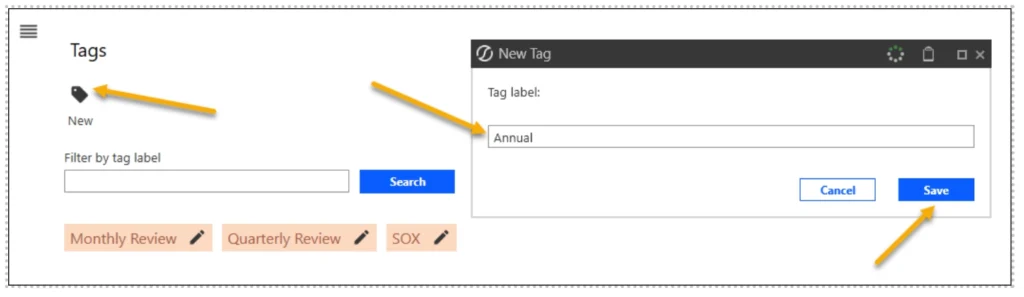
These will now be available to assign to reports. To assign navigate to the report you would like and click the drop down at the top. All available tags will show for selection and assignment.
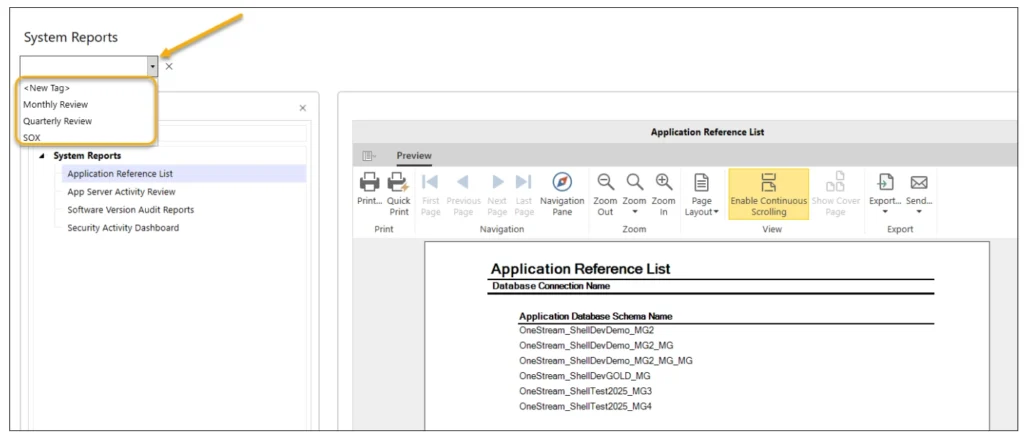
Once and admin assigs a tag users can view. By clicking on the Quarterly Review tag, I can easily see and access all the reports within this group.
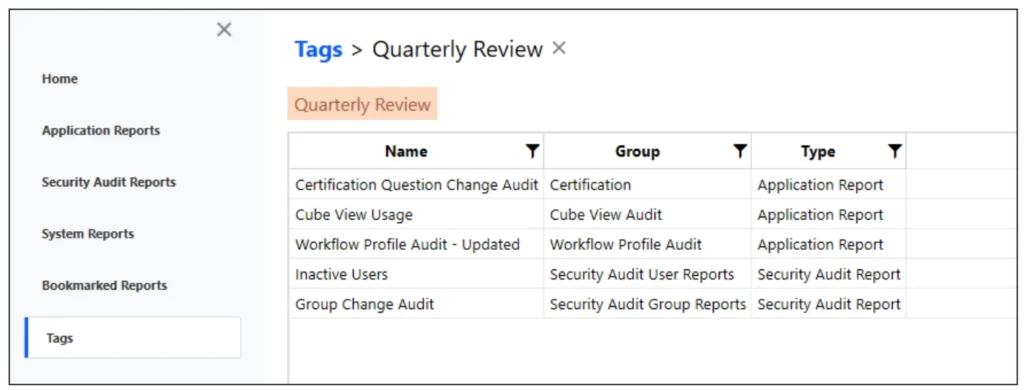
Tags provide a flexible way to organize reports across functional areas while keeping the overall report library easier to navigate.
Tracking Reports with Due Dates
Administrators can also configure due dates for reports.
If a report has a due date within the next 10 days, it will automatically appear in the Due Soon section of the Navigation Center homepage. This provides a helpful reminder for users to review or run important reports within the expected timeframe.
For teams responsible for recurring reporting tasks, this feature helps keep things from slipping through the cracks and ensures reports are ready and have been reviewed when the auditors come asking (and they always do).
Managing Report Security
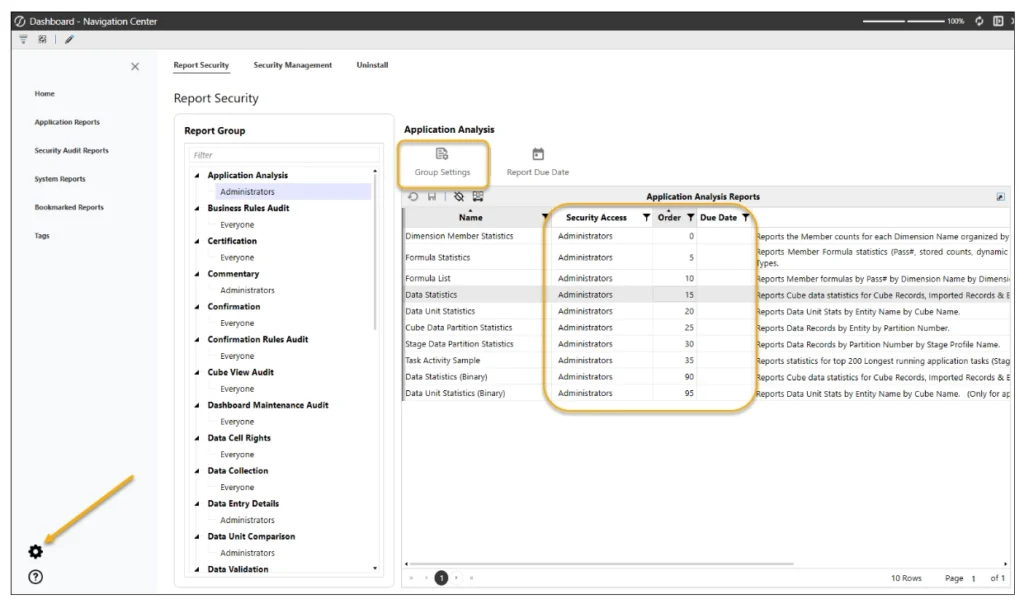
Navigation Center also makes managing report security simpler and more intuitive. Administrators can manage report security using one screen. Access to the group as well as individual reports is managed here.
You can also change the report order and assign due dates within this grid.
Finding and Running Reports
Within the Navigation Center, reports are organized into three categories:
- Application Reports
- Security Reports
- Audit Reports
Within each category, users will initially see:
- Recently viewed reports
- Reports due soon
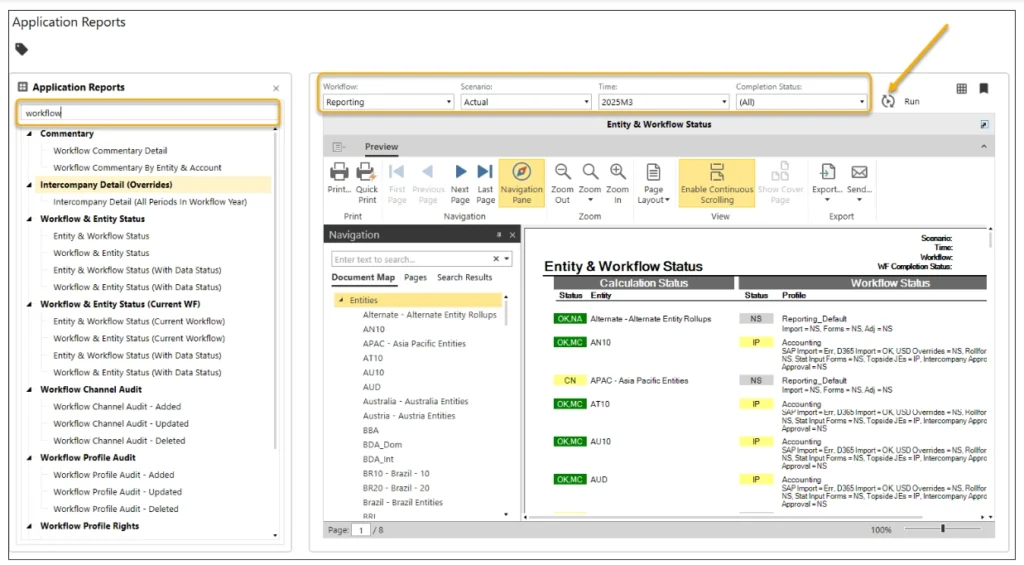
The filter and search bar can be used to quickly locate specific reports. For example, typing Workflow will display all reports that contain “Workflow” in the report name.
To open a report:
- Double-click the report name.
- The report will open in the main panel.
- Select the parameters at the top of the screen.
- Run the report to view the results.
Working with Report Data in Grid View
One of the most useful enhancements in Navigation Center is the Grid View option.
In previous reporting solutions, users often exported reports as PDFs and then converted them to Excel for further analysis. With Grid View, users can view the underlying data directly in a table format with just the click of a button.

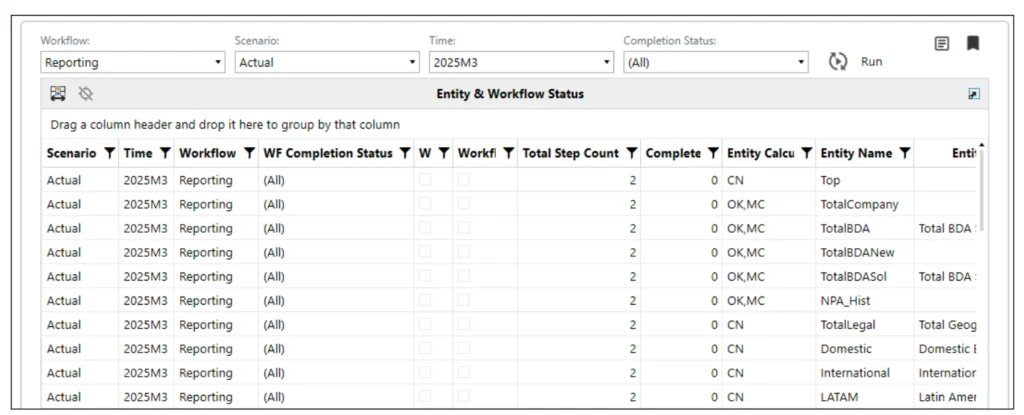
By right-clicking within Grid View, users can easily export the data to Excel for additional analysis. Gone are the days of wrestling with a PDF export just to analyze report data.
Saving Reports with Bookmarks
Navigation Center also allows users to bookmark reports for quick access.
If you frequently run a report, simply select the bookmark icon to add it to your saved list. Bookmarked reports appear in the Bookmarked Reports section of the home page, making it easy to return to them later.
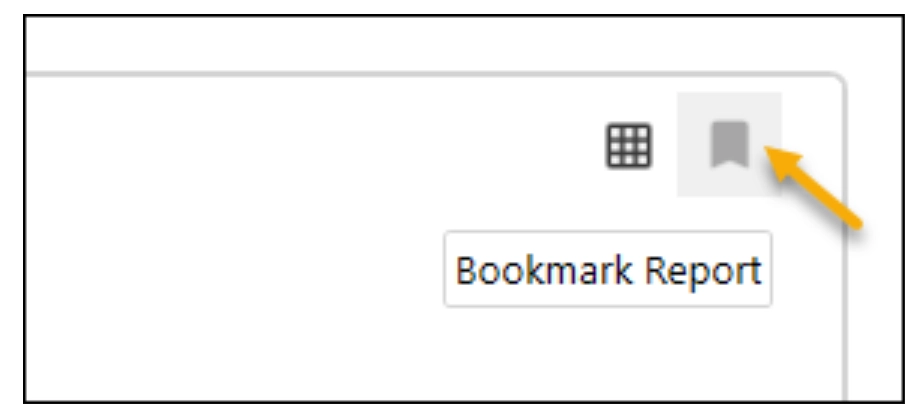
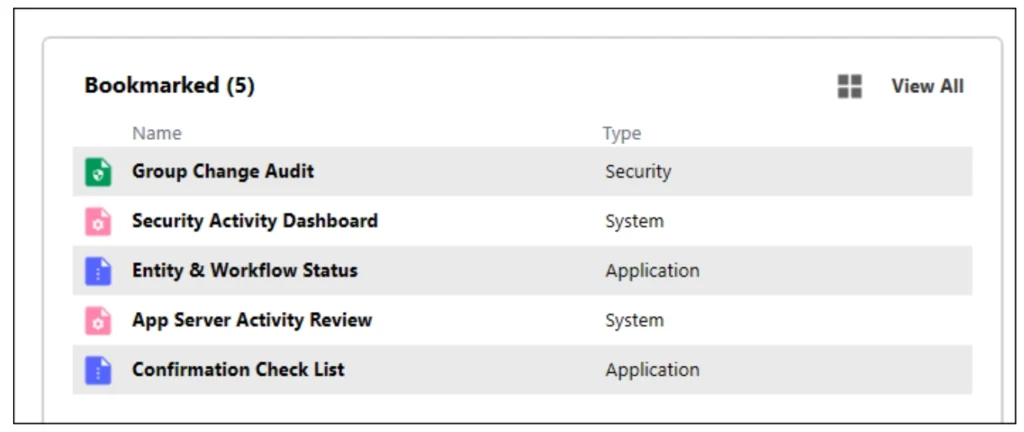
Bookmarks can also be removed at any time if they are no longer needed. Think of it as your personal “favorite reports” list.
Final Thoughts
Navigation Center brings reporting capabilities in OneStream into a single, streamlined experience. By consolidating Application, Security, and Audit reporting into one interface, it reduces the need to manage multiple Marketplace solutions while making reports easier to organize and access.
Features like tags, due dates, bookmarks, and an improved landing page help users quickly locate important reports and stay on top of reporting tasks. The addition of Grid View allows users to view report data in a table format and export it as needed, eliminating the extra steps of converting PDFs for analysis.
Overall, Navigation Center simplifies report management in OneStream while adding practical enhancements for both administrators and end users.

When reporting becomes easier to manage, that’s a win for everyone!